MacにインストールできるLinuxに【Asahi Linux】があります。今回は2020年に発売されたM1のMacBook Airにインストールしてみました。デフォルトでデュアルブートになり現在の環境を残したままインストールできます。
ほぼ自動でインストール、ただし...
インストールするにはMacのターミナルで1つのコマンドを実行するだけであり、比較的に簡単です(いくつか選択する項目はあります)。
ただし、元に戻す際には、手動でパーティションを削除する操作が必要であるため、コマンド操作に慣れていないと、最悪の場合にMacが起動しなくなる恐れがあります。
このため、インストール前にアンインストールの操作を確認しておくのがオススメです。
インストールする手順
いくつか選択する項目があり、その中で既存のパーティションのサイズを変更するのでサイズを決めておくとスムーズです。
また、デスクトップもKDE Plasma/GNOMEを選択するので、これも決めておくとスムーズです。
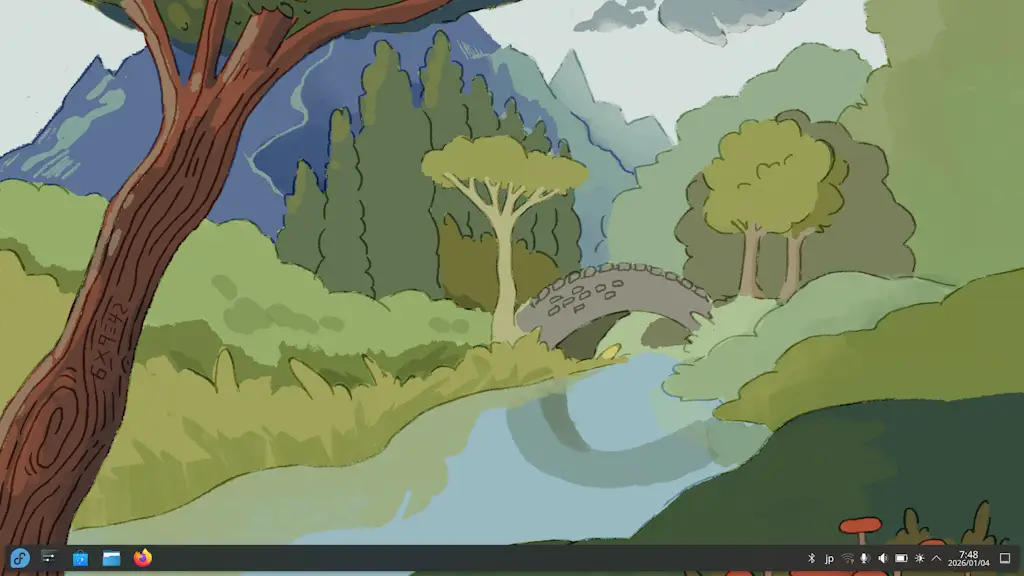
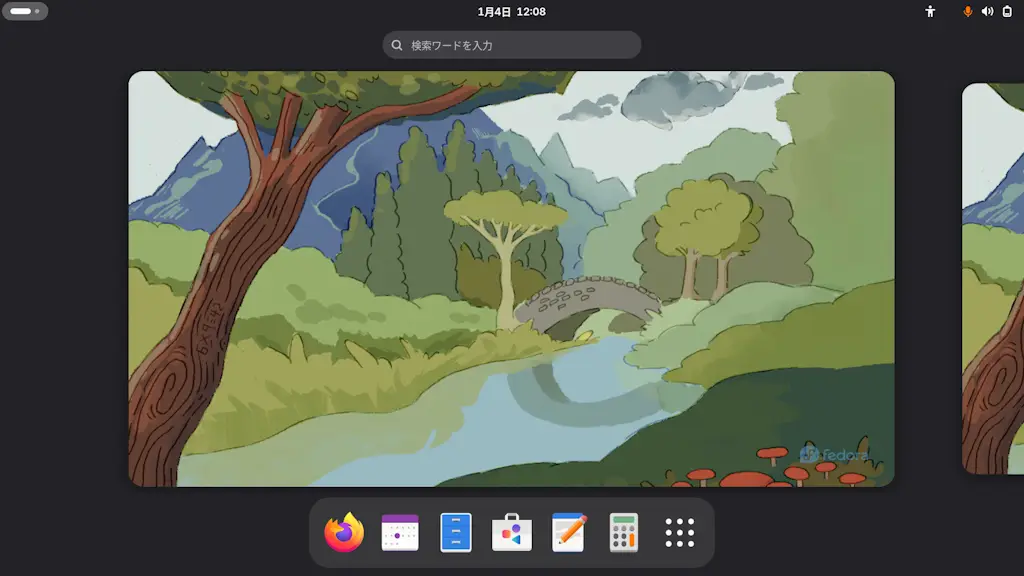
Macのターミナルで操作
公式サイトに記載されているInstall from macOSのコマンドをコピーしてターミナルで実行します。
curl https://alx.sh | sh
Password:で止まったら、Macの管理者のパスワードを入力します(入力したパスワードは表示されません)。
The installer needs to run as root.
Please enter your sudo password if prompted.
Password:
Press enter to continue.で止まったら、キーボードのを押下します。
Welcome to the Asahi Linux installer!

This installer will guide you through the process of setting up
Asahi Linux on your Mac.

Please make sure you are familiar with our documentation at:
 https://alx.sh/w

Press enter to continue.
Action (r):で止まったら、既存のパーティションのサイズを変更して新しいOS用のスペースを確保するため、そのままキーボードのを押下します。
Choose what to do:
  r: Resize an existing partition to make space for a new OS
  q: Quit without doing anything
» Action (r):
» New size (50%):で止まったら、macOSのパーティションの新しいサイズを入力し、キーボードのを押下します(デフォルトは50%)。
Enter the new size for your existing partition:
  You can enter a size such as '1GB', a fraction such as '50%',
  or the word 'min' for the smallest allowable size.

  Examples:
  30%  - 30% to macOS, 70% to the new OS
  80GB - 80GB to macOS, the rest to your new OS
  min  - Shrink macOS as much as (safely) possible

» New size (50%):
» Continue? (y/N):で止まったら、空き容量を確認し問題が無ければキーボードのyを入力してを押下します
Resizing will free up 122.55 GB of space.

Note: your system may appear to freeze during the resize.
This is normal, just wait until the process completes.
» Continue? (y/N): y
リサイズが開始されるので、終了するまでしばらく待ちます。
Shrinking APFS data structures
[ / 0% .. 10% .. 20% .. 30% .. 40%...............] 45.3% 0:00:29
Resize complete. Press enter to continue.で止まったら、キーボードのを押下します。
Resize complete. Press enter to continue.
» Action (f):で止まったら、空き領域にOSをインストールするするため、キーボードのを押下します。
Choose what to do:
  f: Install an OS into free space
  r: Resize an existing partition to make space for a new OS
  q: Quit without doing anything
» Action (f):
» OS:で止まったら、インストールするOSを選択しますが、特に理由が無ければ1または2を入力し、キーボードのを押下します。
Choose an OS to install:
  1: Fedora Asahi Remix 42 with KDE Plasma
  2: Fedora Asahi Remix 42 with GNOME
  3: Fedora Asahi Remix 42 Server
  4: Fedora Asahi Remix 42 Minimal
  5: UEFI environment only (m1n1 + U-Boot + ESP)
» OS:
» New OS size (max):で止まったら、空き領域のすべてにインストールするので、キーボードのを押下します。
How much space should be allocated to the new OS?
  You can enter a size such as '1GB', a fraction such as '50%',
  the word 'min' for the smallest allowable size, or
  the word 'max' to use all available space.
» New OS size (max):
» OS name (Fedora Linux~):で止まったら、起動オプションなどに表示するOS nameを入力し、キーボードのを押下します。
Enter a name for your OS
» OS name (Fedora Linux with KDE Plasma):
Password for (ユーザー名):で止まったら、macOSのrootのパスワードを入力し、キーボードのを押下します。
To continue the installation, you will need to enter your macOS
admin credentials.

Password for (ユーザー名):
» Choice (y/n/d):で止まったら、インストールレポートの送信に協力する場合にはyを入力し、キーボードのを押下します(任意)。
Help us improve Asahi Linux!
We'd love to know how many people are installing Asahi and on what
kind of hardware. Would you mind sending a one-time installation
report to us?

This will only report what kind of machine you have, the OS you're
installing, basic version info, and the rough install size.
No personally identifiable information (such as serial numbers,
specific partition sizes, etc.) is included. You can view the
exact data that will be sent.

Report your install?
  y: Yes
  n: No
  d: View the data that will be sent
» Choice (y/n/d):
Press enter to continue.で止まったら、表示された内容を確認し、キーボードのを押下します。
To be able to boot your new OS, you will need to complete one more step.
Please read the following instructions carefully. Failure to do so
will leave your new installation in an unbootable state.

Press enter to continue.
Press enter to shut down the system.で止まったら、キーボードのを押下するとシャットダウンします。
When the system shuts down, follow these steps:

1. Wait 25 seconds for the system to fully shut down.
2. Press and hold down the power button to power on the system.
   * It is important that the system be fully powered off before this step,
     and that you press and hold down the button once, not multiple times.
     This is required to put the machine into the right mode.
3. Release it once you see 'Loading startup options...' or a spinner.
4. Wait for the volume list to appear.
5. Choose 'Fedora Linux with KDE Plasma'.
6. You will briefly see a 'macOS Recovery' dialog.
   * If you are asked to 'Select a volume to recover',
     then choose your normal macOS volume and click Next.
     You may need to authenticate yourself with your macOS credentials.
7. Once the 'Asahi Linux installer' screen appears, follow the prompts.

If you end up in a bootloop or get a message telling you that macOS needs to
be reinstalled, that means you didn't follow the steps above properly.
Fully shut down your system without doing anything, and try again.
If in trouble, hold down the power button to boot, select macOS, run
this installer again, and choose the 'p' option to retry the process.

Press enter to shut down the system.
macOS復旧で操作
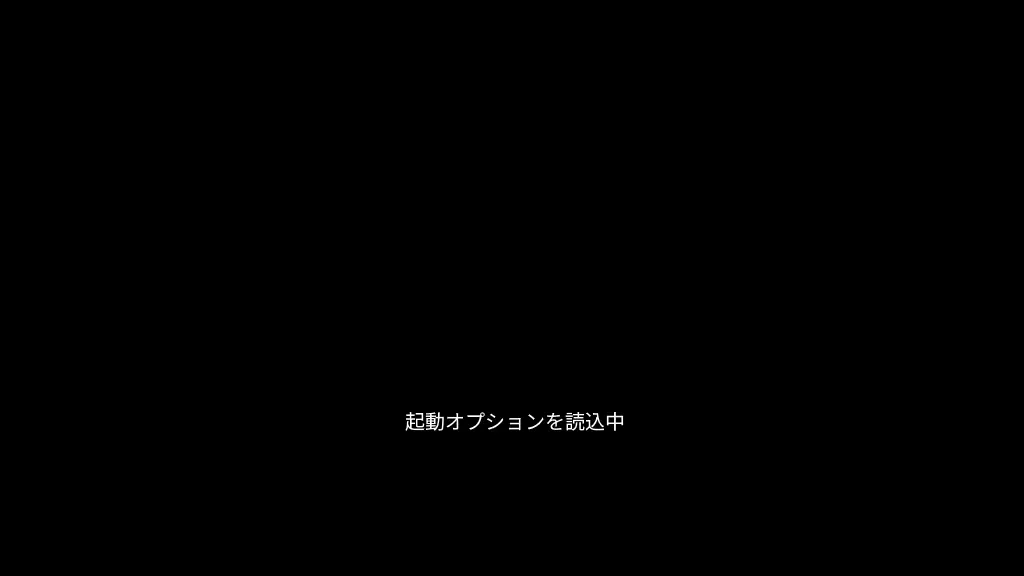
電源ボタンを長押しし起動オプションを表示するには押し続けてください>起動オプションを読込中が表示されたら指を離します。
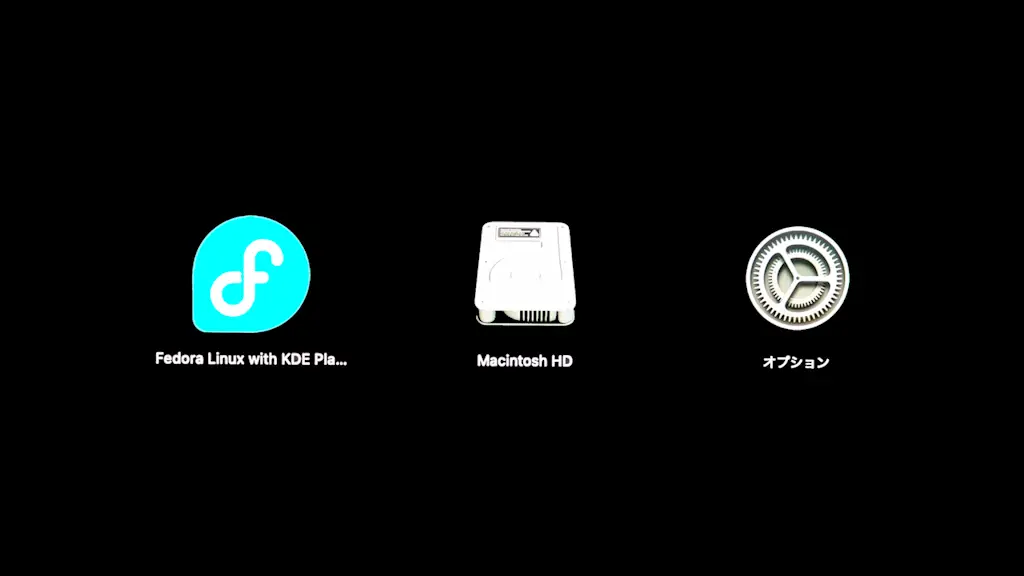
Fedora Linux~/Macintosh HD/オプションよりFedora Linux~を選択して起動します。
macOS復旧より管理者ユーザー>次へを選択しパスワードを入力します。
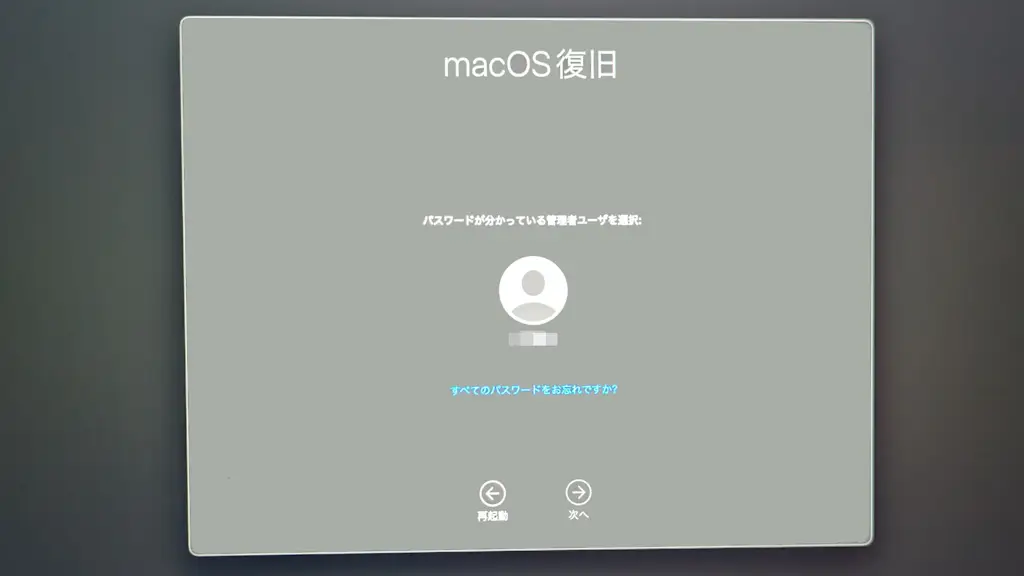
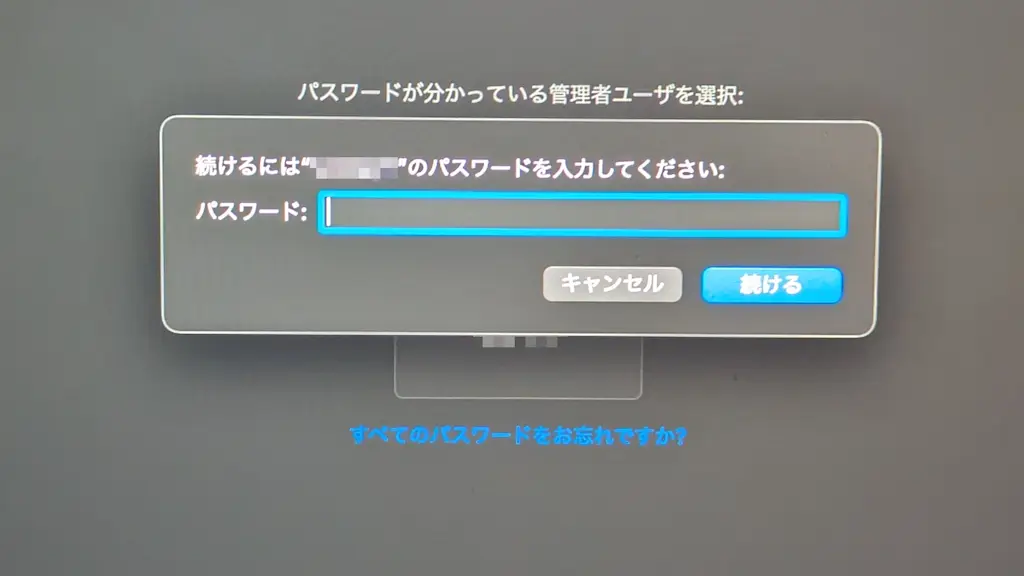
Press enter to continue.で止まったら、キーボードのを押下します。
Asahi Linux installer (second step)

VGID:
System volume: /Volumes/Fedora Linux with KDE Plasma

You will see some messages advising you that you are changing the
security level of your system. These changes apply only to your
Asahi Linux install, and are necessary to install a third-party OS.

Apple Silicon platforms maintain a separate security level for each
installed OS, and are designed to retain their security with mixed OSes.
The security level of your macoS install will not be affected.

You will be prompted for login credentials two times.
Please enter your macoS credentials (for the macOS that you
used to run the first step of the installation).

Press enter to continue.
Please enter password for user (ユーザー名):で止まったら、ユーザーのパスワードを入力し、キーボードのを押下します。
Operating on Volume Group UUID

This utility is not meant for normal users or even sysadmins.
It provides unabstracted access to capabilities which are normally handled for t
he user automatically when changing the security policy through GUIs such as the
Startup Security Utility in macOS Recovery ("recoveryOS").
It is possible to make your system security much weaker and therefore easier to
compromise using this tool.
This tool is not to be used in production environments.
It is possible to render your system unbootable with this tool.
It should only be used to understand how the security of Apple Silicon Macs work
S.
Use at your own risk!

Please enter password for user (ユーザー名):
Are you sure you want to do this? (enter y or n)で止まったら、yを入力し、キーボードのを押下します。
By setting a custom boot object, you will be putting your system into Permissive
Security.
Are you sure you want to do this? (enter y or n)
Username:/Password:で止まったら、管理者ユーザー/パスワードを入力し、キーボードのを押下します。
found raw boot object, deriving Mach-O boot properties ...
wrapping boot object payload ...
going to change bootpolicy to permissive ...
updating local machine policy ...
Username:
Password:
Installation complete! Press enter to reboot.で止まったら、キーボードのを押下すると再起動します。
installing boot object ...
done.
Wrapping up ...

Installation complete! Press enter to reboot.
セットアップ
画面の指示に従って任意にセットアップすれば完了です。
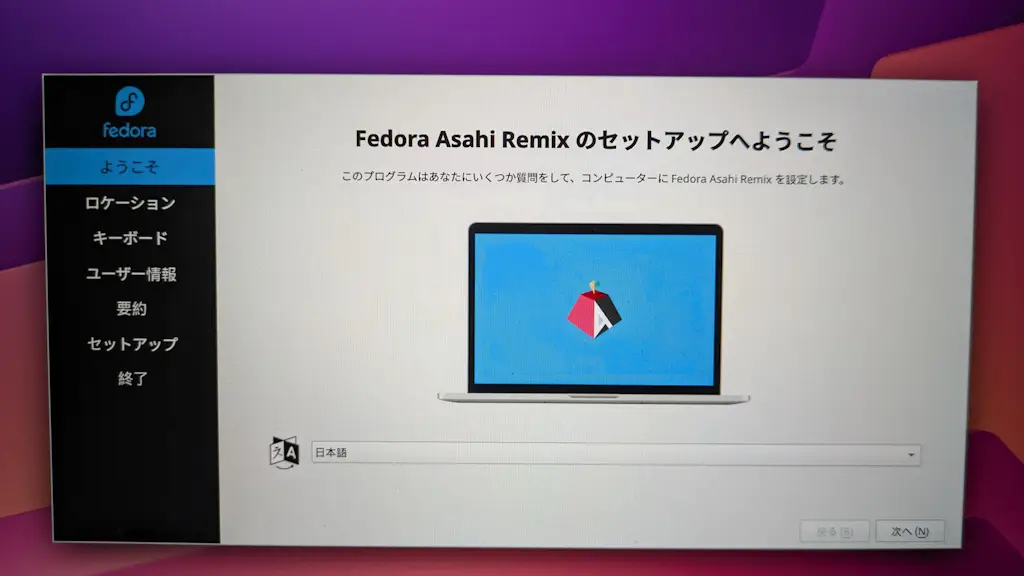
インストールするやり方は以上です。
起動するとデフォルトでFedora Asahi Remixが起動します。
macOSを起動するには?
電源ボタンを長押しし起動オプションを表示するには押し続けてください>起動オプションを読込中が表示されたら指を離します。
Fedora Linux~/Macintosh HD/オプションよりMacintosh HDを選択すると起動します。
システム設定の一般>起動ディスクよりデフォルトをmacOSにすることもできます。